
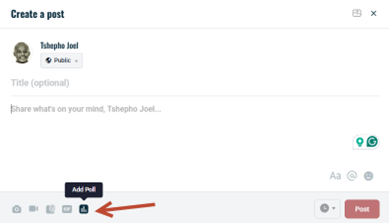
- Access Post Creation: Go to the frontend and initiate the process of creating a new post.
- Select Polls Icon: Locate the new polls icon on the media bar and click on it.
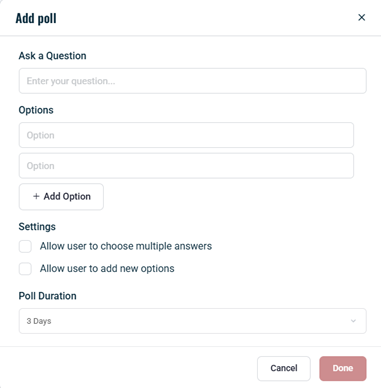
Enter Poll Details
- Question: Compose a clear and concise poll question that effectively conveys the topic you want to address.
- Options: Provide at least two options (up to 10) that represent the possible answers or choices for your community members.
- Settings: Customise the poll’s behaviour by configuring additional settings, such as:
- Multiple Answers: Allow members to select multiple options if applicable.
- Adding New Options: Enable community members to suggest additional options.
- Duration: Set the desired duration for the poll, ranging from 1 day to 2 weeks.
- Click Done: Once you’re satisfied with the poll’s configuration, click Done to proceed.
- Add Description (Optional): If you wish to provide additional context or information, add a description to the poll.
Post Poll: Click Post to publish your poll and make it accessible to your community.
Poll Display and Interaction
- Poll Appearance: The poll will be prominently displayed in the Activity feed, featuring the question, options, and current vote count.
- Multiple Answers: If enabled, members can select multiple options using checkboxes, allowing for diverse perspectives and opinions.
- Single Answer: If only one answer is permitted, members will see radio buttons, limiting their selection to a single option.
- Adding Options: If the setting is enabled, community members can contribute additional options to the poll, expanding the range of choices and fostering collaboration.
- Viewing Results: Members can view the poll results by clicking the arrow on the right of each option, gaining insights into the preferences and opinions of their fellow community members.
Time Remaining: The poll’s remaining time will be displayed, informing members of the deadline for participation.