
View Scheduled Posts
Click on the clock icon and select View Scheduled Posts.
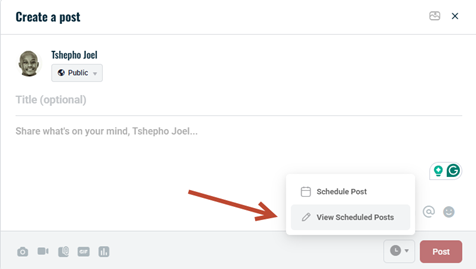
A list of all scheduled posts will appear, showing their planned publication dates and times.

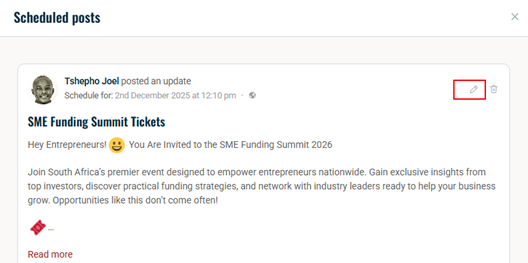
Edit a Scheduled Post
- Click the pencil icon next to the post you want to edit.
- Modify the content or change the scheduled date and time as needed.
- Click Update Schedule to save the changes.
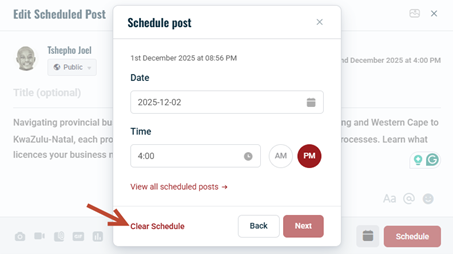
Clear or Delete a Scheduled Post
- Click Clear Schedule to remove the scheduled date and time, which will publish the post immediately.
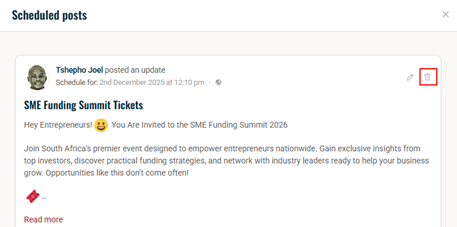
To delete the post, click the delete icon next to it.
Share Posts
- Click Share to open a dropdown with available sharing options.
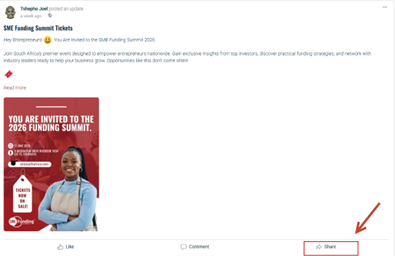
Choose where to share, for example, your own feed, a group, a friend’s profile, or a message thread.
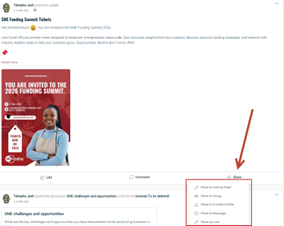
- A pop-up will appear where the user can add a personalised message before sharing.
- External shares on platforms like Facebook or LinkedIn include:
- The post title
- The post description
- A featured image
